A client that has everything.
What Fireout Client 0.1.4 does today, screen by screen. No roadmap promises: if it's here, it ships.
Play
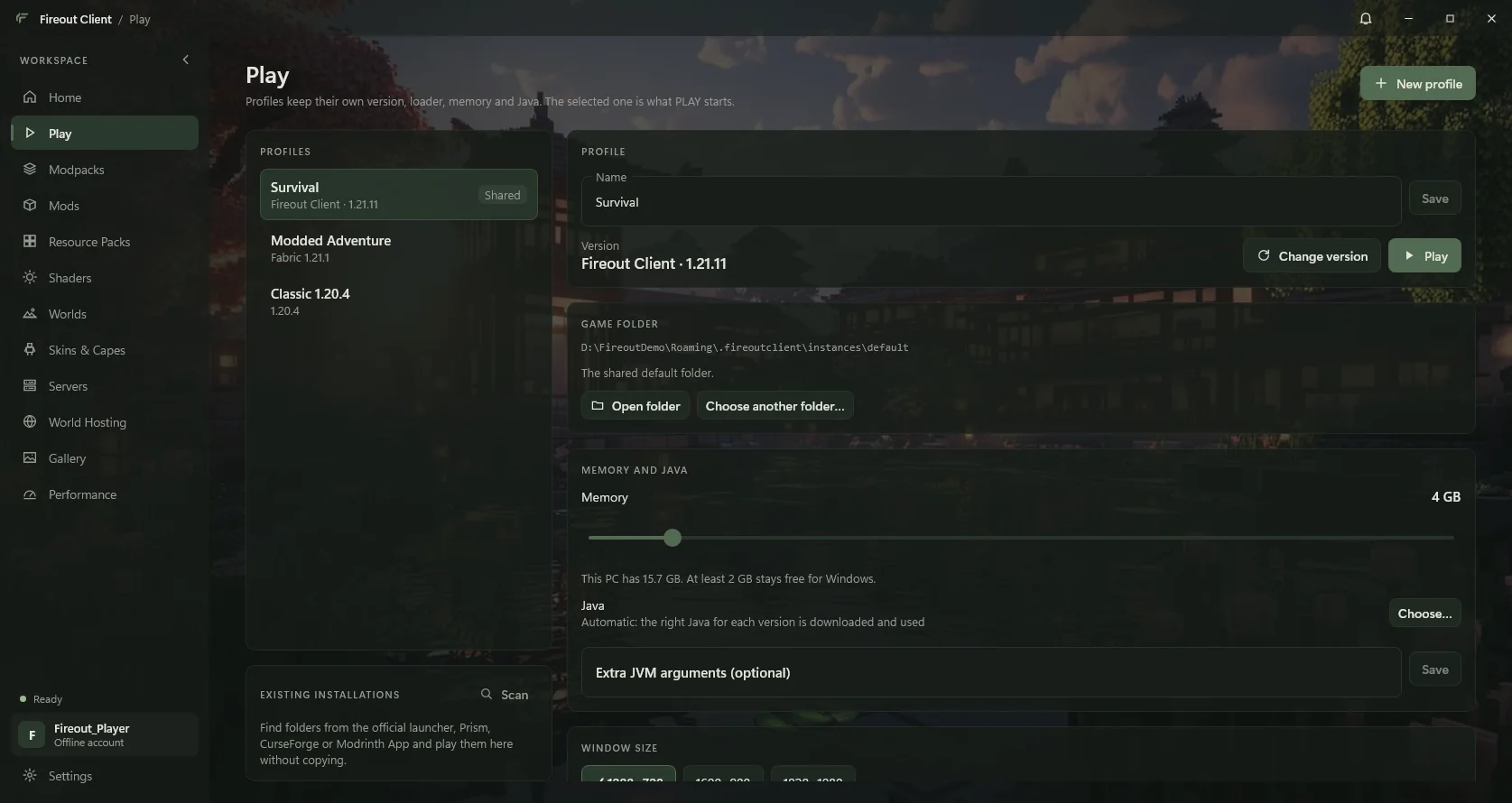
Press PLAY and the launcher downloads, checks and starts everything itself: the game, its libraries and the right Java.
- Every version
- All Minecraft releases (snapshots optional), on Vanilla, Fabric, Forge, NeoForge or OptiFine.
- Profiles
- Separate instances with their own mods, worlds, settings and memory. Your settings stay put across version changes inside a profile.
- Performance presets
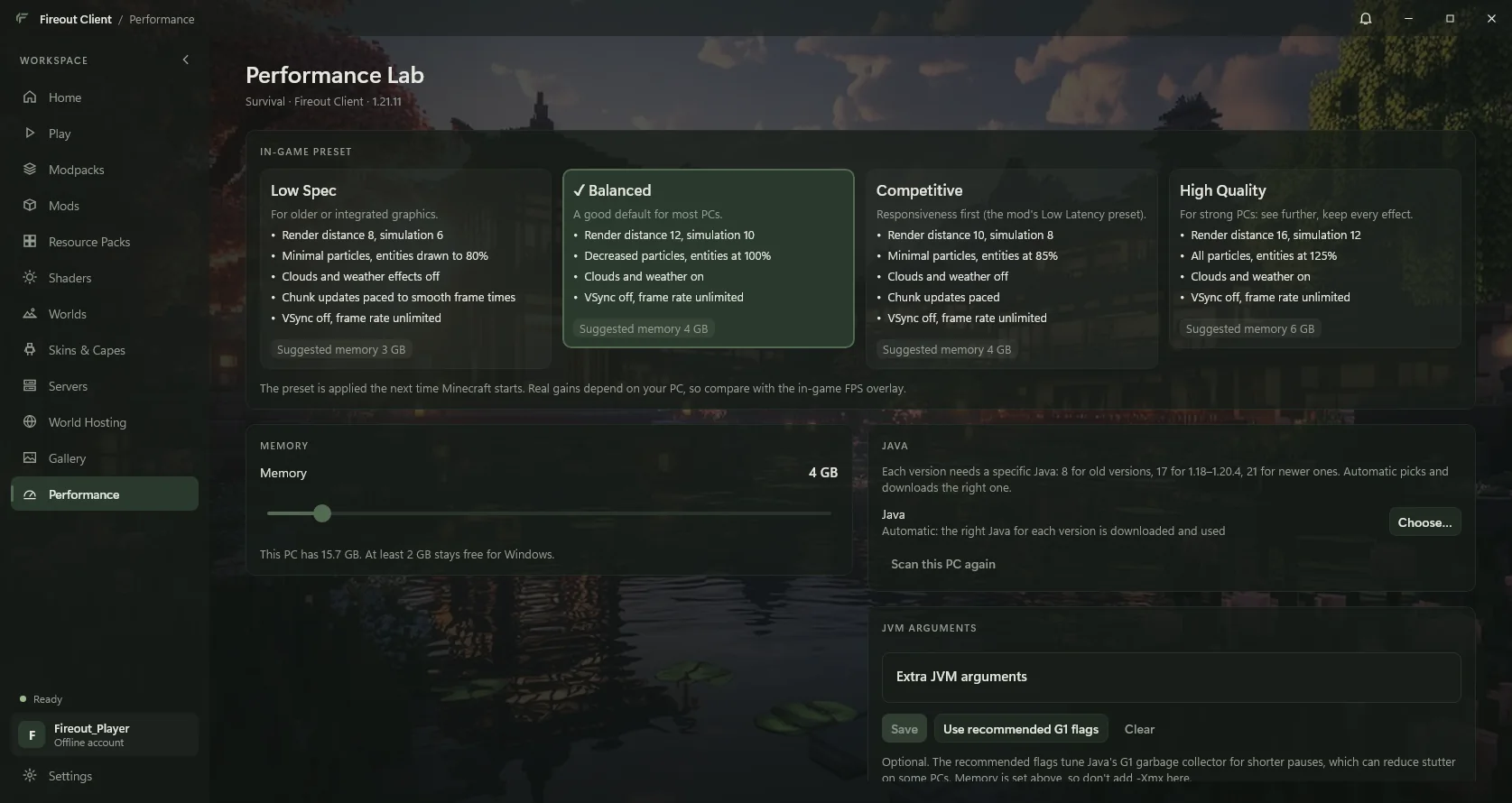
- Low Spec, Balanced, Competitive and High Quality set real Minecraft options. VSync is off and frame rate unlimited in every preset. A preset never overwrites a setting you changed in game.
- No frame caps
- Performance mods' built-in limits (for example Dynamic FPS' 60 FPS state) are lifted automatically.
- Your settings come with you
- On first launch a profile imports options, keybinds and your server list from the Minecraft installs already on your PC.
- Java handled
- Mojang's official Java runtime for each version, verified, with a bundled Java for 1.21.11.
- Repair
- One button re-checks every file and fixes damaged ones.
In game: the Fireout Client mod
On 1.21.11 and in both BOOST modes, Fireout adds a clean, modern HUD and its own settings screen.
- Performance card
- Real FPS from Minecraft's own counter and a live ping, measured every second (not the stale server-list number), colour-coded green, amber or red. Optional frame time.
- Armor card
- Each piece with its real remaining durability, a percentage and a coloured bar. Empty slots show the piece's outline; items that never wear out say so.
- Keystrokes
- W A S D, jump and both mouse buttons light up in your theme colour, with clicks per second.
- Fireout settings in game
- Options → Fireout Client Settings. Switch preset, VSync, frame cap (up to Unlimited), each HUD card, and other players' skins.
- Lightweight
- Built on Fabric, drawn in a few calls per frame.
In-game HUD
Three cards, your theme colour.
| Card | Shows |
|---|---|
| Performance | FPS, live ping (green / amber / red), optional frame time |
| Armor | Each piece, real durability, % and bar |
| Keystrokes | W A S D, jump, both mouse buttons, CPS |
Every card can be switched off in Options → Fireout Client Settings.
Mods, packs and shaders
The whole Modrinth catalogue is one click away, with the right version picked for your profile.
- Browse and install
- Mods, resource packs, shaders and modpacks from Modrinth, filtered to your Minecraft version and loader. Files are hash-checked.
- Download Dependencies
- If a mod needs other mods, a button beside it installs exactly what is missing, and never a second copy of something you already have.
- Updates
- Check every installed mod for newer versions at once and update with one click.
- Manage
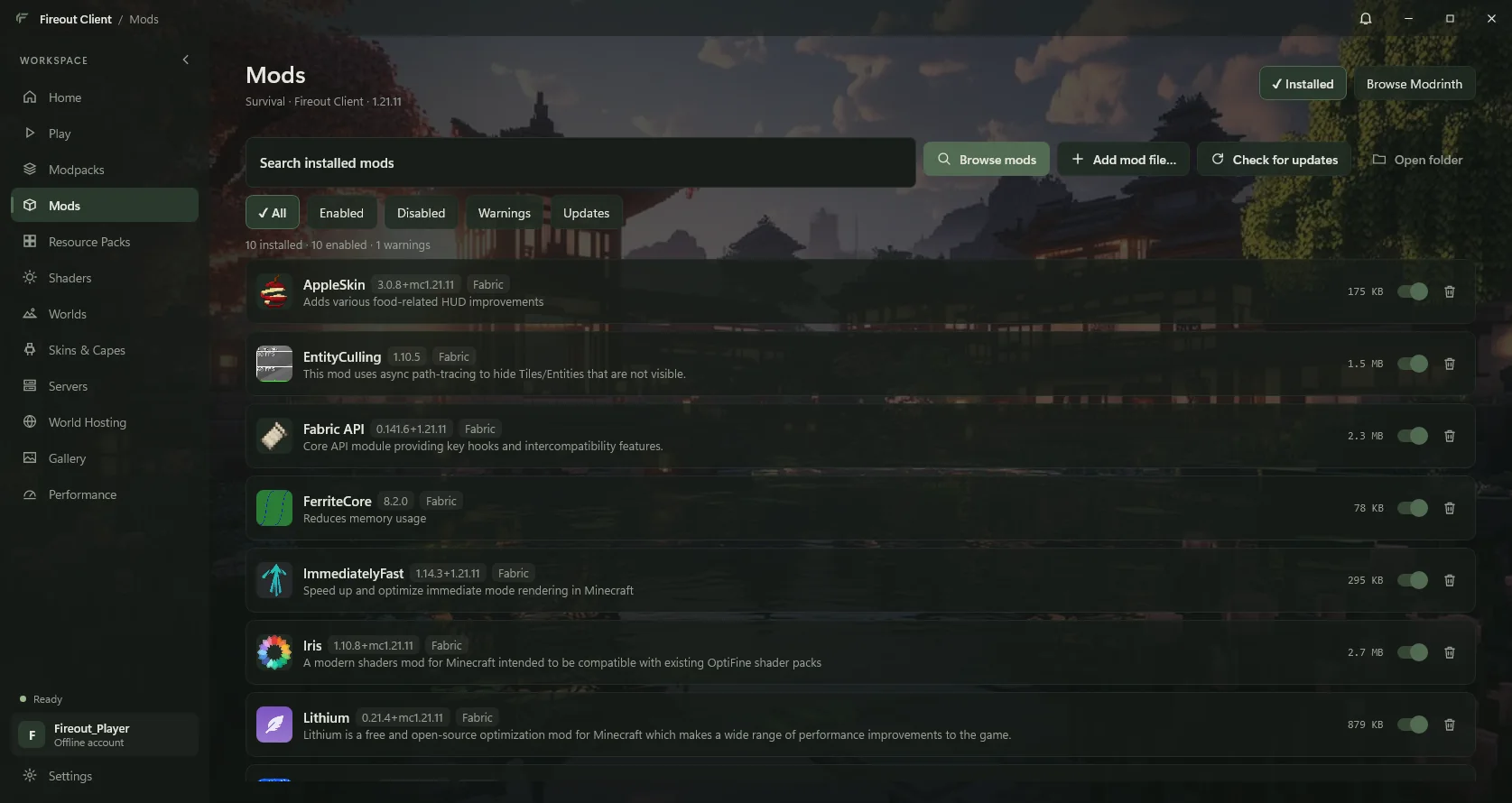
- Turn mods and packs on or off, add your own files, see warnings for wrong versions or missing requirements.
- Shaders
- One-click Iris install for Fabric profiles, then pick a shader pack.
- Modpacks
- Each installs into its own profile, so nothing else is touched.
Skins and capes
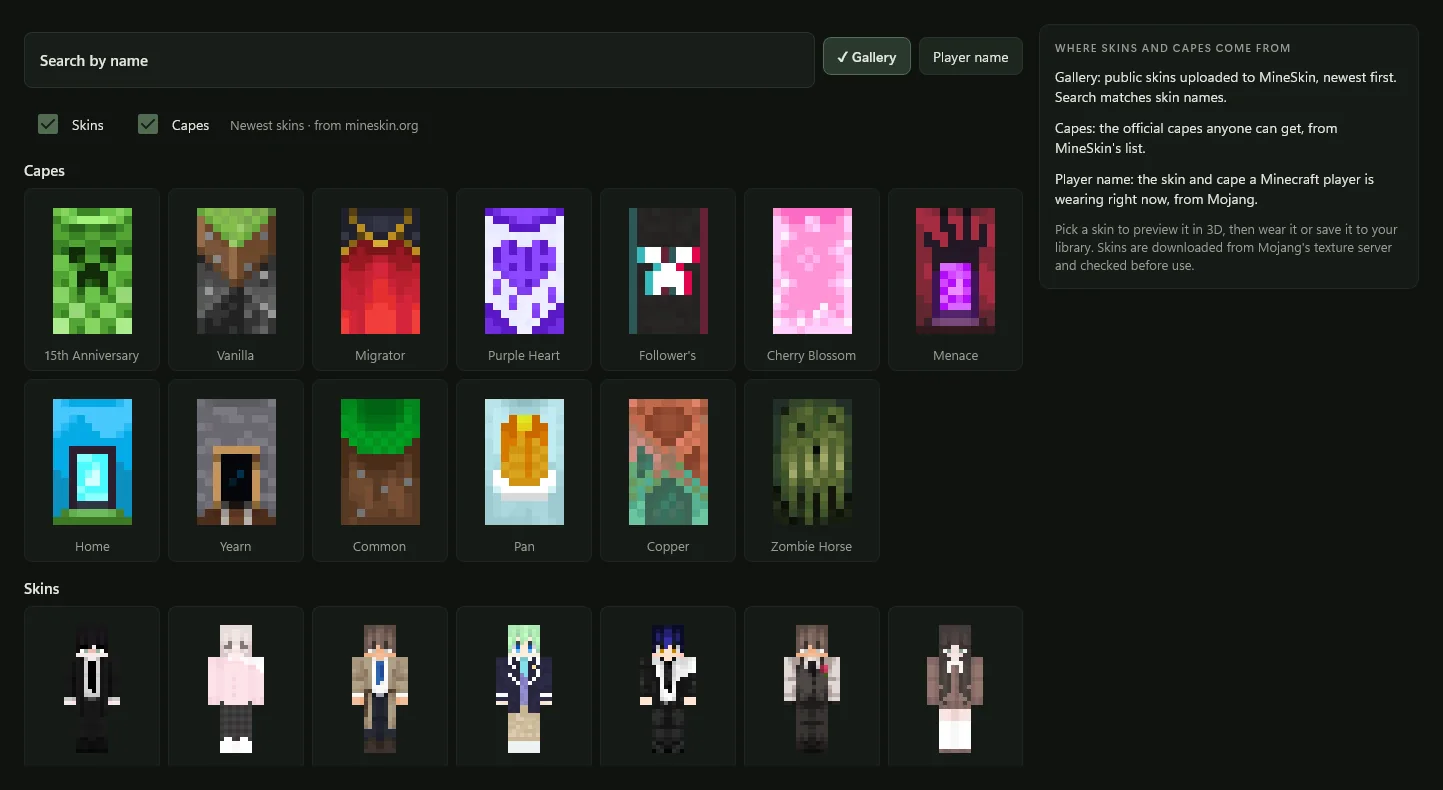
Wear any skin and cape, preview them in 3D, and let other Fireout players see them.
- Discover
- Browse thousands of public skins (MineSkin gallery), the official capes anyone can get, or any player's current skin and cape by name. Tick Skins, Capes or both.
- 3D preview
- Turn and zoom your character with the cape on before you wear it.
- Your library
- Upload your own PNG skins and capes, keep favourites, switch arm models.
- Seen by friends
- Your custom skin and cape show for other Fireout players on offline and LAN servers. You can turn sharing off at any time in Settings.
- Microsoft accounts
- Real skins and capes from your Minecraft profile (when Microsoft sign-in is enabled).
Worlds and World Hosting
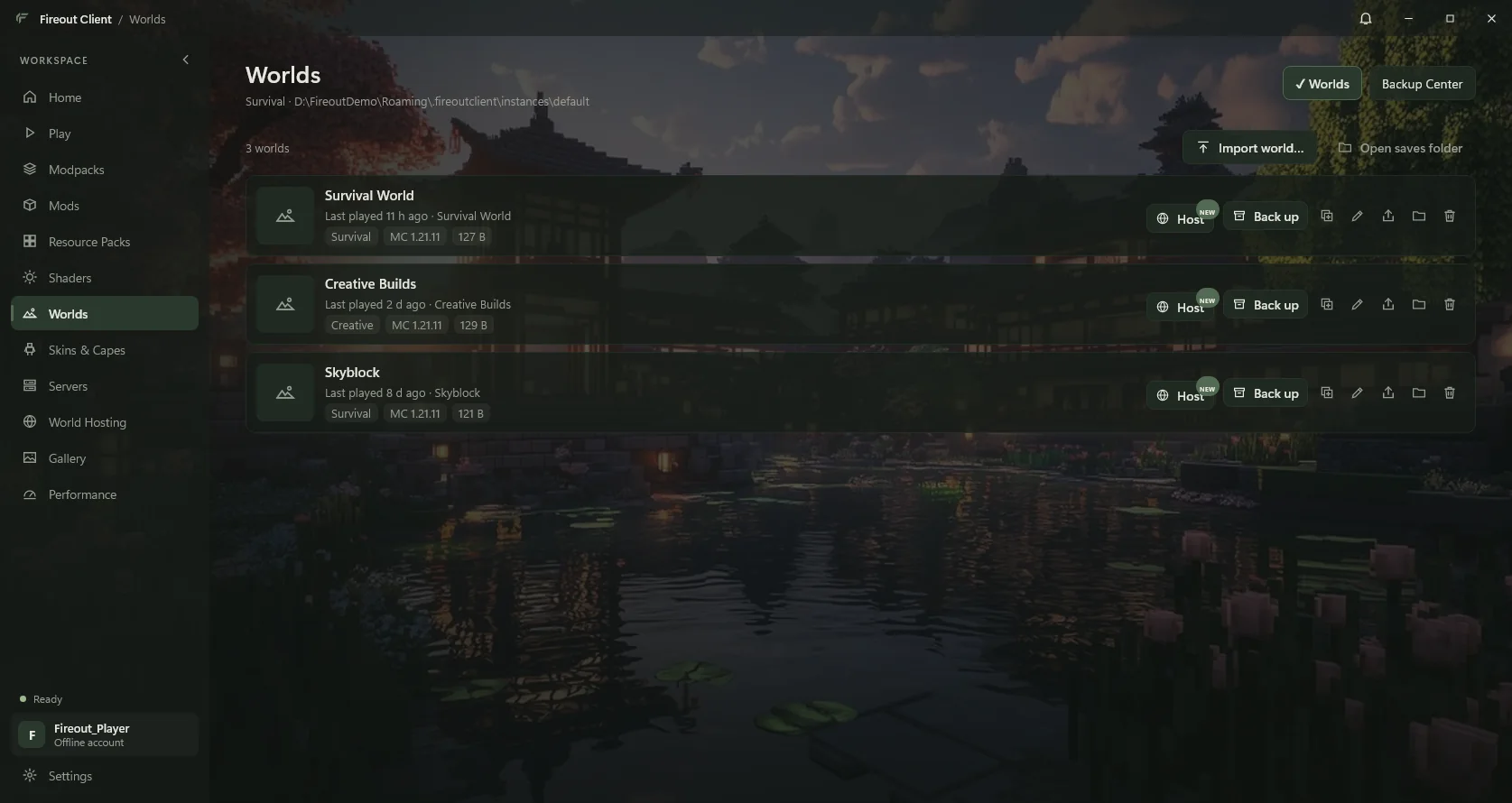
Host your own world for friends in a few clicks, without risking the original.
- World Hosting
- Press Host on any world. Fireout backs it up, makes a copy, downloads the official Mojang server (or Fabric, with your server-side mods) and starts it in the background. Closing the launcher keeps it running.
- Your world stays safe
- The server never touches the original. Progress is written back only after a confirmed clean shutdown, and the version from before is kept.
- Let friends join
- Link a free playit.gg account once and friends anywhere get an address, with no router setup. Or let the launcher open your router's port, or keep it to your Wi-Fi.
- Live dashboard
- Step-by-step progress, players online, console, whitelist, op, kick and ban, and which mods run on the server.
- Backup Center
- Back up, restore, import and export worlds and launcher settings.
- Safe by default
- Online mode on; offline mode always requires a whitelist.
Everything else
The small things that make it feel finished.
- Servers
- Your multiplayer list with live status, player counts and favourites, synced with Minecraft's own list.
- Gallery
- Every screenshot from every profile in one place.
- Accounts
- Offline accounts that just work; Microsoft sign-in ready for when it is switched on, with tokens encrypted by Windows or kept in the macOS Keychain.
- Themes
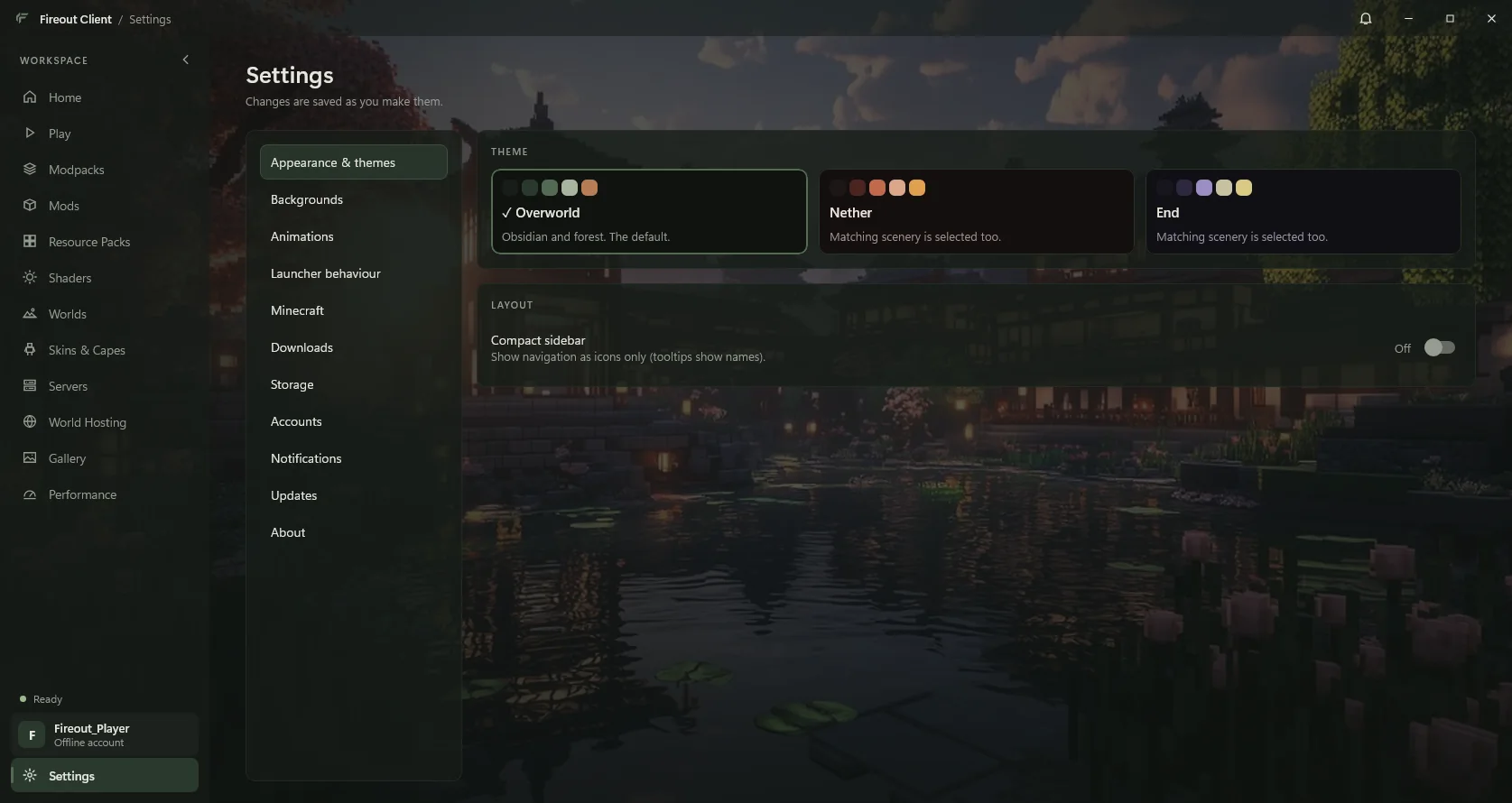
- Overworld, Nether and End, each with its own colours and background, picked on first launch; your own wallpaper too. (This site has the same switch, top right.)
- Three-step setup
- A name, how much memory, a theme. Downloads start only when you press PLAY.
- Your data survives reinstalls
- Settings, accounts and worlds live in your own .fireoutclient folder and stay if you uninstall.
- Notifications
- And a task panel so you always know what's happening.